How to add Autorentic as intermediary in MyInvois Portal
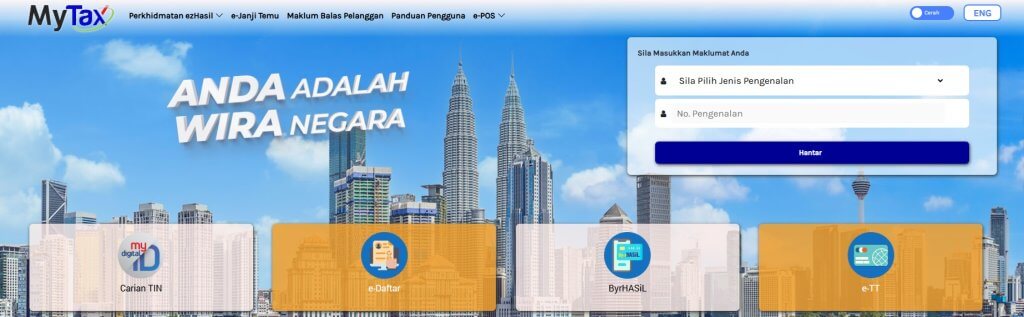
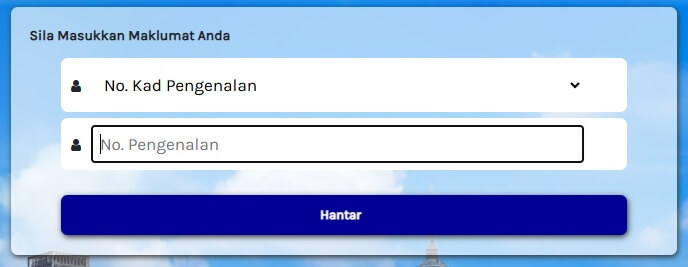
To use the eInvoice feature in Autorentic, you must appoint Autorentic as an intermediary. Before doing so, ensure that you have an active MyTax account.
Below are the steps to appoint Autorentic as an intermediary:
* Important notes: If you encounter the error “Unable to find taxpayer” or “Invalid TIN” even though the TIN entered is correct, try refreshing the page and entering the TIN again. Please type it manually instead of using copy-and-paste. Also ensure that the company name matches exactly as shown above, including the “.” (full stop).
Step 7
Set the starting date & end date:
Representation From: Today’s date
Representation To: 1 year or 10 years from today’s date
Permissions: Enable all*
* Make sure you have enabled all the permissions, after that press ‘Save‘.
Step 8
Please attach the screen shot after you have successfully added STRONGBOX TECH SDN. BHD. (for Autorentic) as an intermediary in your company’s MyInvois portal, so that we can process to link your account to MyInvois portal.
The image below provides you an example of how it looks like after you have successfully added Autorentic as your intermediary at MyInvois Portal:
This is all that you need to set up on your MyInvois Portal.
If you have any questions, please do not hesitate to reach out to us at contact us.